Help
Failed to reach server
Whoops Juicebar was not able to connect to the internet. This can happen for different reasons. Please read on to see what you can do to resolve this issue.
1. Make sure your are connected to the internet
Very obvious but make sure you can reach https://get-juicebar.com in your browser of choice. If connecting for some reason fails try to connect to a different network. Your Home network instead of your Office network for example.
2. Make sure Juicebar is allowed to connect to the internet
Sometimes the internet traffic of Juicebar gets blocked before it can leave your computer. Most of the times a firewall on your computer is the bad guy in this story. Adding a rule to the firewall that allows Juicebar to connect fixes most of these problems.
How to add a rule to the Windows Firewall.
Anti Virus software sometimes come with a built in Firewall. Make sure Juicebar is allowed to connect here as well. To check if this is the problem you could disable the Anti Virus Firewall for a moment to see if Juicebar is able to connect. Adding a custom rule to the Firewall should fix the problem.
It could also happen that your computer got somehow misconfigured. Below we keep a list of things you could check.
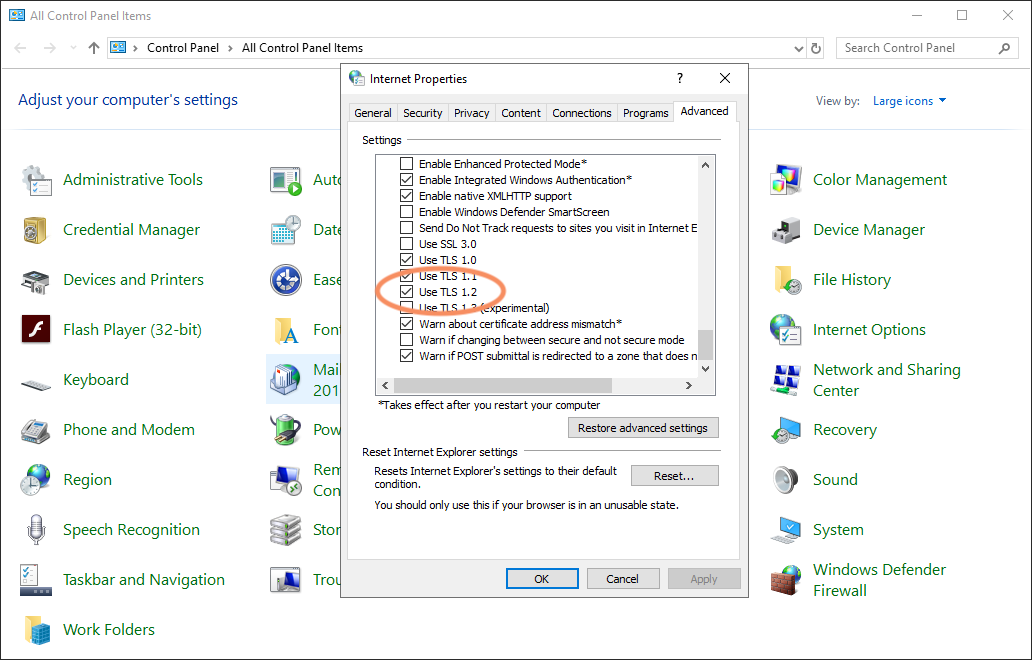
Make sure 'Use TLS 1.2' is enabled
3. Make sure Juicebar traffic is allowed on your connected network
It’s not always your computer that blocks the traffic of Juicebar. Sometimes the network your are connecting through is blocking traffic. This could happen when you are connecting through a Wifi Hotspot on your Hotel or a Corporate network for example.
To see if this is the case try to navigate to https://get-juicebar.com in your favourite browser. If the connection fails then something between you and our servers is blocking your traffic. Try to connect to a different network. There is nothing else you could do.
4. Problem not resolved?
Send us an email at contact@get-juicebar.com and we do our best to resolve your issue as quickly as possible.
Guides
How to add a rule to the windows firewall
1. Open the 'Control Panel' and navigate to 'Windows Defender Firewall'
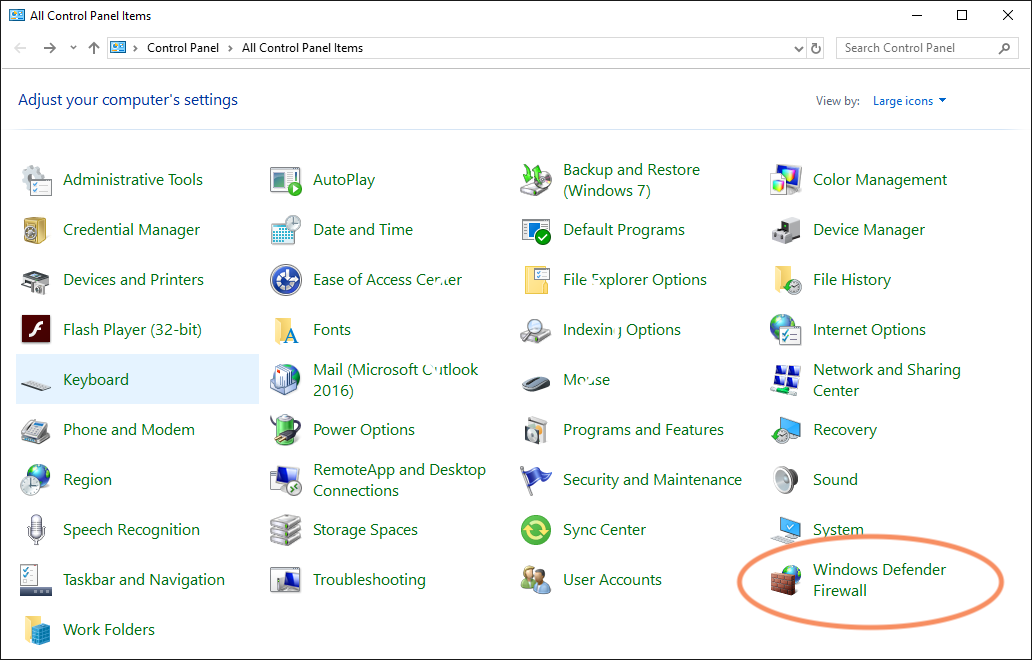
2. Navigate to 'Allow an app or feature throught Windows Defender Firewall'
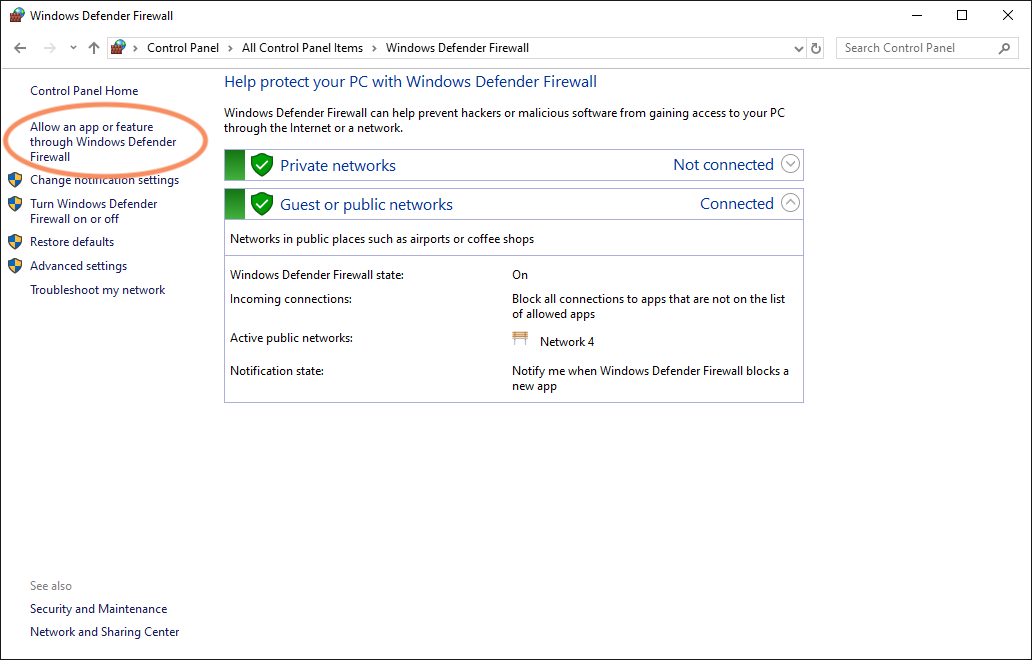
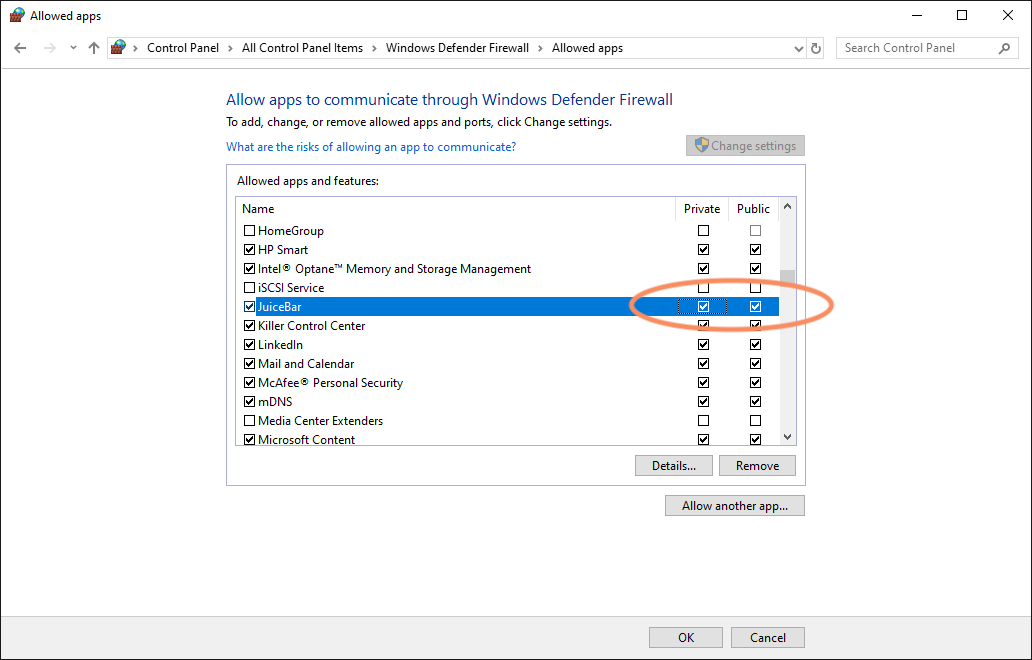
3. Try to find 'Juicebar' in the list of apps and features. If you cannot find it move to step 4 otherwise make sure both the checkboxes for 'Private' and 'Public' are checked
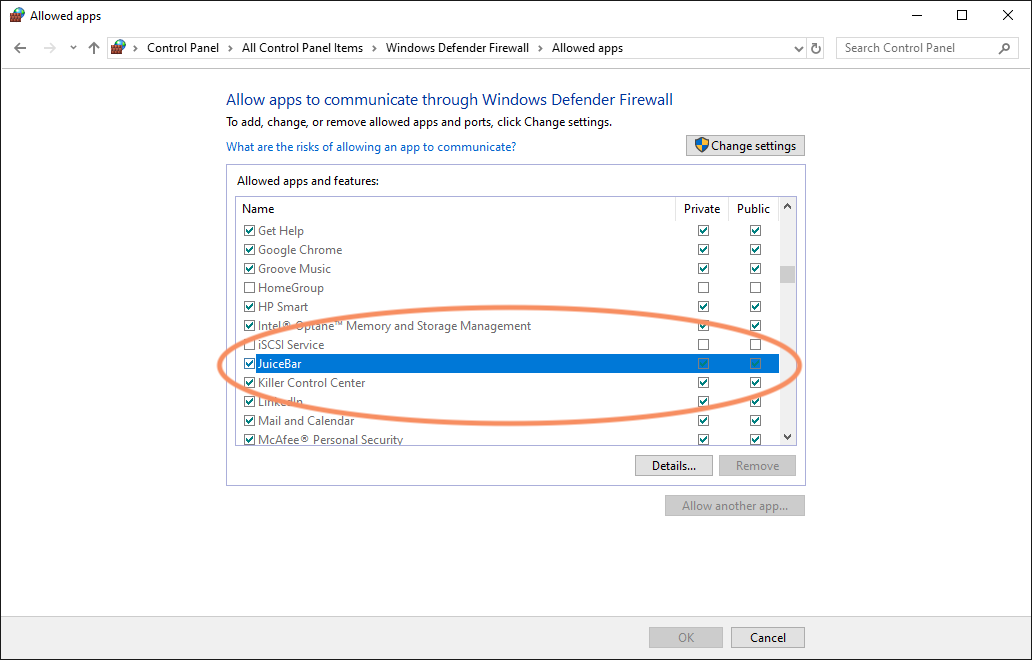
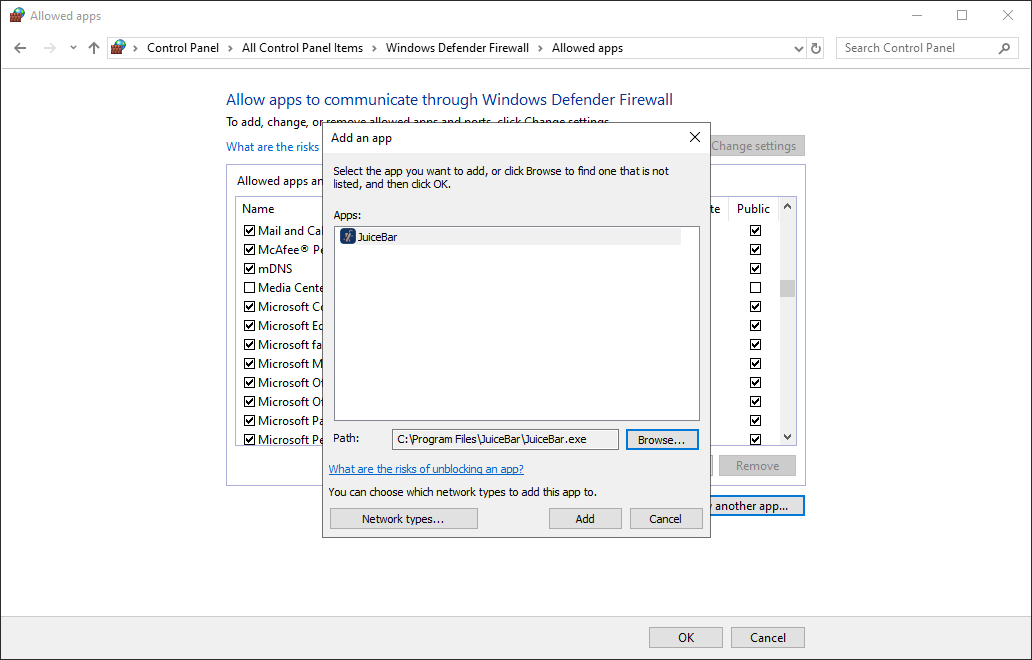
4. To add Juicebar to the list press 'Change settings' and press 'add'. Navigate to 'C:/Program Files/JuiceBar/' and select 'JuiceBar.exe' and press open
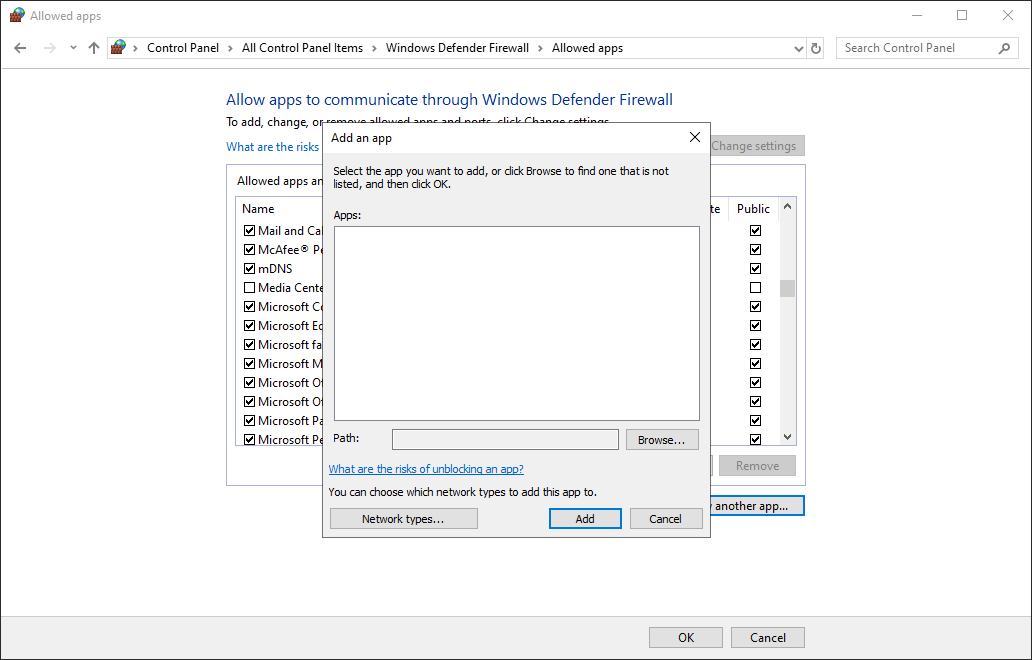
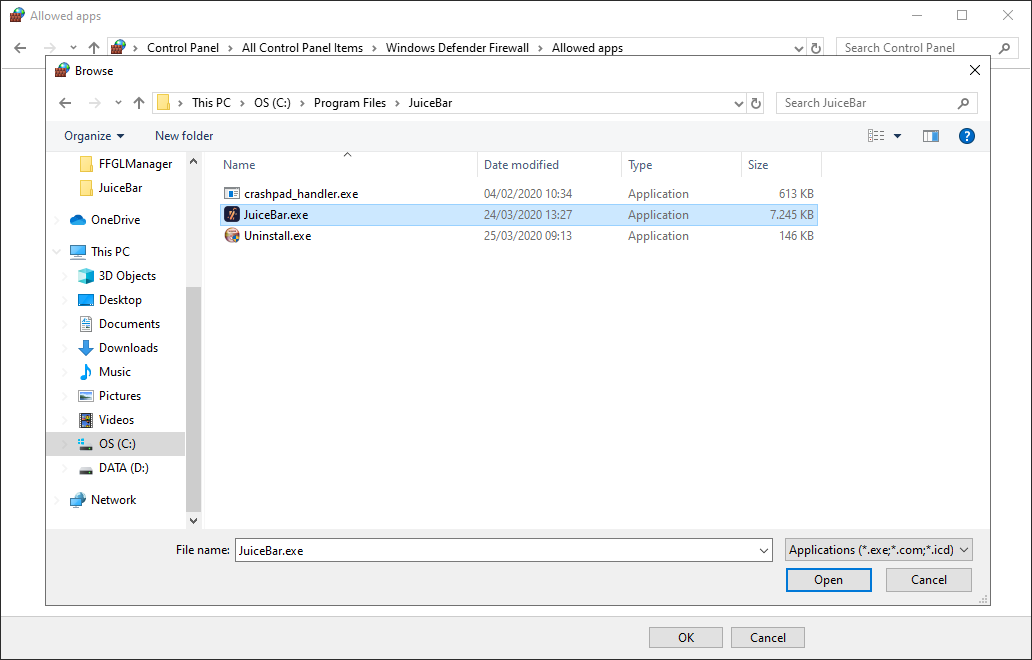
6. Press 'add' and make sure both checkboxes are checked
How to enable 'Use TLS 1.2'
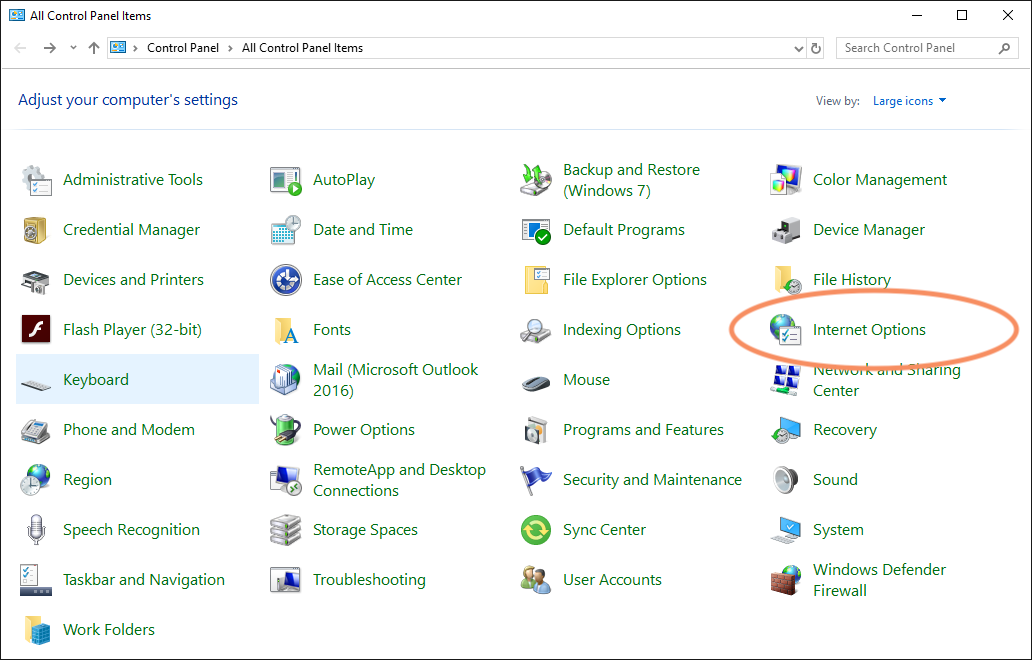
1. Open the 'Control Panel' and navigate to 'Internet Options'
2. Navigate the to the 'Advanced' tab and scroll down until you see 'Use TLS 1.2'. Enable the checkbox and press 'ok'
Problem not resolved?
Send us an email at contact@get-juicebar.com and we do our best to resolve your issue as quickly as possible.